 ShotPress
How to get photos under 1 MB for email
Published · Updated · Meru Apps
To get photos under 1 MB for email, open ShotPress, select the photos, and choose the Email preset — 2048 px, aimed at 1 MB or under per photo. Tap compress and attach the results. For an exact cap, Pro lets you set a target size and finds the quality that lands beneath it.
Get photos under 1 MB, step by step
- Open ShotPress and tap Select photos, or import a folder.
- Select the photos you want to email.
- Tap the preset row and choose Email (2048 px, ≤ 1 MB each).
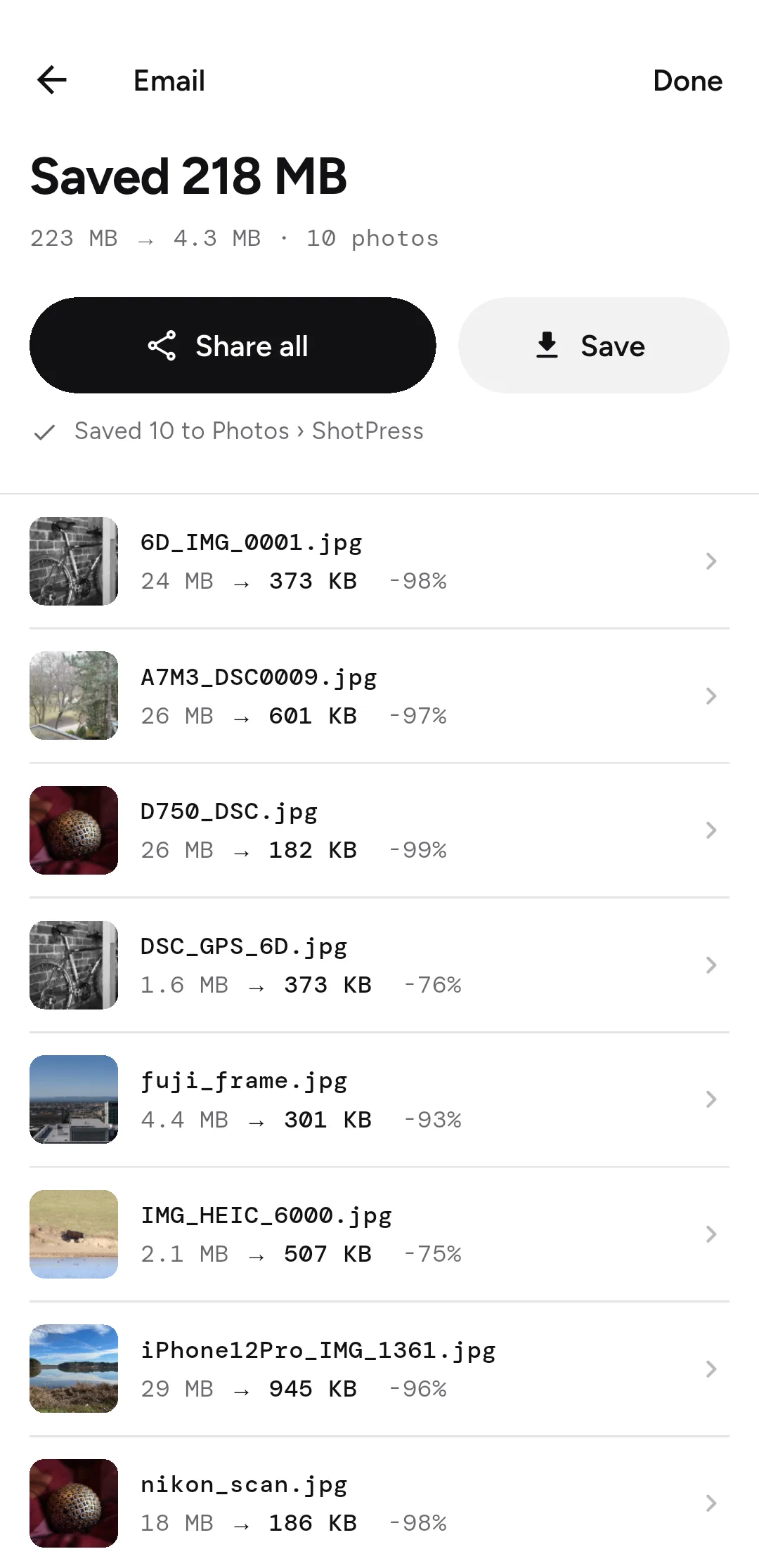
- Tap Compress. ShotPress shrinks each photo on your phone.
- Tap Share all and pick your mail app, or Save and attach from there.
How do you hit an exact size?
On Pro, open Custom and set a target file size — say 1 MB or 800 KB — and ShotPress searches for the quality that lands just under it, so an attachment limit is met without trial and error. You see the estimated output before you commit.
Why does email have a size limit?
Most mail providers cap a message around 20–25 MB total, so a handful of full-size photos won't send. Getting each under 1 MB lets you attach a dozen and stay well inside the limit — and the recipient's inbox won't reject it.
Can you compress a whole batch for email?
Yes. Select as many photos as you need and ShotPress compresses them in one pass to the same setting, then shows the total space saved. On the free tier you can do up to five photos a day; Pro removes the limit.
What it doesn't do
The Email preset aims for 1 MB and gets most photos there; a very detailed image might land a little above. For a guaranteed cap, use the Pro target-size option. ShotPress won't attach the photos to an email itself — it hands the results to your mail app through the share sheet. An iOS version is on the way.
Try it
ShotPress is coming to Google Play. See all the features, or the guides below.