 ShotPress
How to compress photos on Android without losing quality
Published · Updated · Meru Apps
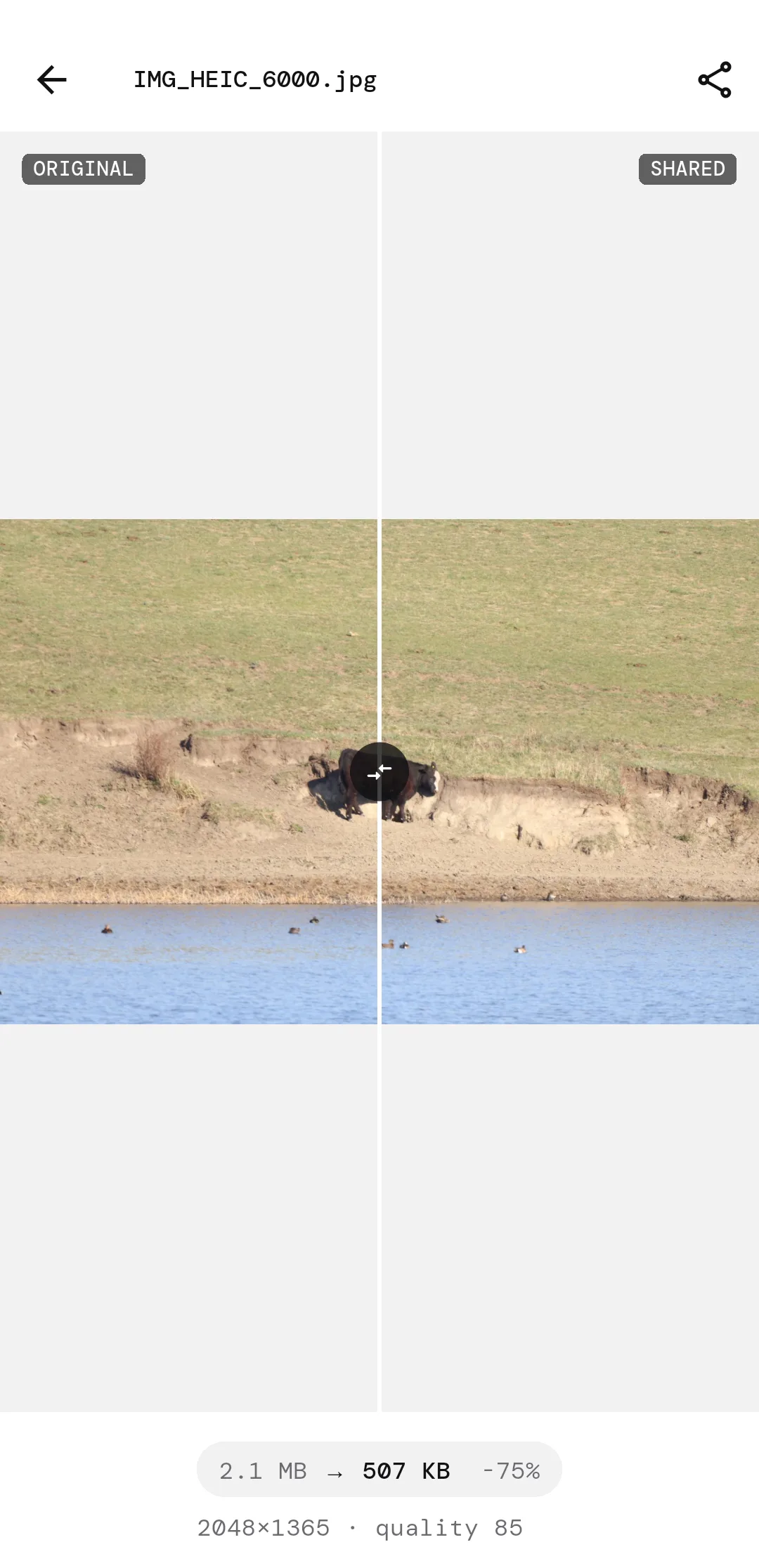
To compress a photo on Android without visible quality loss, resize it to the size it is seen at and save as JPEG at quality 80 to 90. ShotPress does both in one step: select photos, choose a preset such as Email (2048 px, under 1 MB) and tap Compress. One 2.1 MB photo came out at 507 KB.
Compress photos without losing quality, step by step
- Open ShotPress and tap Select photos, or bring them in from Files, a Folder or a ZIP.
- Select the photos. RAW, HEIC, JPG and PNG can sit in the same batch.
- Tap the preset row and choose where the photos are going: WhatsApp (1600 px), Email (2048 px), Web (2560 px, WebP) or Full size (every pixel).
- Tap Compress. Each photo is resized and saved on your phone, as a new file.
- On the results screen, open any photo to compare it with the original before you share or save.
What does "without losing quality" really mean?
It means no difference you can see at the size the photo is viewed. JPEG and WebP always drop some detail when they save, so a file that is truly identical to the original can't also be much smaller. What you can do is drop only the detail nobody will see: the extra pixels a phone or laptop screen never shows, and the fine noise a quality of 80 to 90 discards.
For a lossless copy at full resolution, choose PNG with Full size in Custom (on Pro). A photo saved as PNG is usually bigger than the JPEG it came from, though, so it frees no space.
Which quality setting should you use?
Between 80 and 90 for photos. The ShotPress presets start in that range: WhatsApp and Web use 80, and Full size and Instagram story 90. Email starts at 85 and Instagram post at 90, and they lower the quality only as far as needed to stay under 1 MB and 1.6 MB. On Pro, Custom has a quality slider from 10 to 100, and a size limit (300 KB, 500 KB, 1 MB and up) for which ShotPress finds the highest quality that fits.
Does resizing a photo lower its quality?
Not at the size it is viewed. A modern phone camera shoots 4000 pixels or more across, while a chat or a web page shows it far smaller. Resizing to 1600 or 2048 pixels on the long edge removes pixels that were never going to be seen. ShotPress keeps each photo's shape and never enlarges a photo that is already smaller than the preset.
JPEG, WebP or HEIC?
JPEG is the safe choice for sharing: everything opens it. WebP is smaller at the same quality and well supported on the web, less so in some chat apps. HEIC is smaller again, but some apps and sites can't open it. The presets write JPEG, except Web, which writes WebP; choosing the format yourself is part of Pro.
How do you check a photo before you share it?
Open it from the results screen. The compare view shows the original and the compressed copy of the same photo, side by side under a divider you drag, with both file sizes. Because ShotPress saves a new file, the original is still there if you want a larger copy.
What it doesn't do
ShotPress doesn't sharpen, denoise or "enhance" photos; it resizes and re-saves them. The free tier compresses up to 5 photos a day; Pro removes the limit. Choosing the quality, the format and an exact size limit needs Pro. On Android, some Sony, Olympus and Panasonic RAW files open at the camera's embedded preview size rather than full resolution, so the copy can't be larger than that preview; the compare screen shows the exact size of every result. HEIC output needs Android 9 or later.
Try it
ShotPress is in closed testing on Android now, with the public release on Google Play coming soon and iOS later. Ask to join the early-access test and we'll add your Google Play account to the testers list, or see all the features.