 ShotPress
How to free up photo storage on Android without losing your photos
Published · Updated · Meru Apps
To free up photo storage on Android without losing your photos, replace the big originals with smaller copies. In ShotPress, compress photos you picked from your library, then tap Free up: it shows how much you would get back and moves the originals you choose to the system trash, after Android asks you to confirm. It needs Android 11 or later.
Free up photo storage, step by step
- Open ShotPress and tap Select photos. Pick the photos in ShotPress's own library picker; Free up space works only for photos picked there.
- Choose a preset. Full size keeps every pixel and saves JPEG at quality 90; Email (2048 px) and Web (2560 px) make much smaller copies.
- Tap Compress. The smaller copies are saved to Pictures › ShotPress, or a folder you chose, before any original moves.
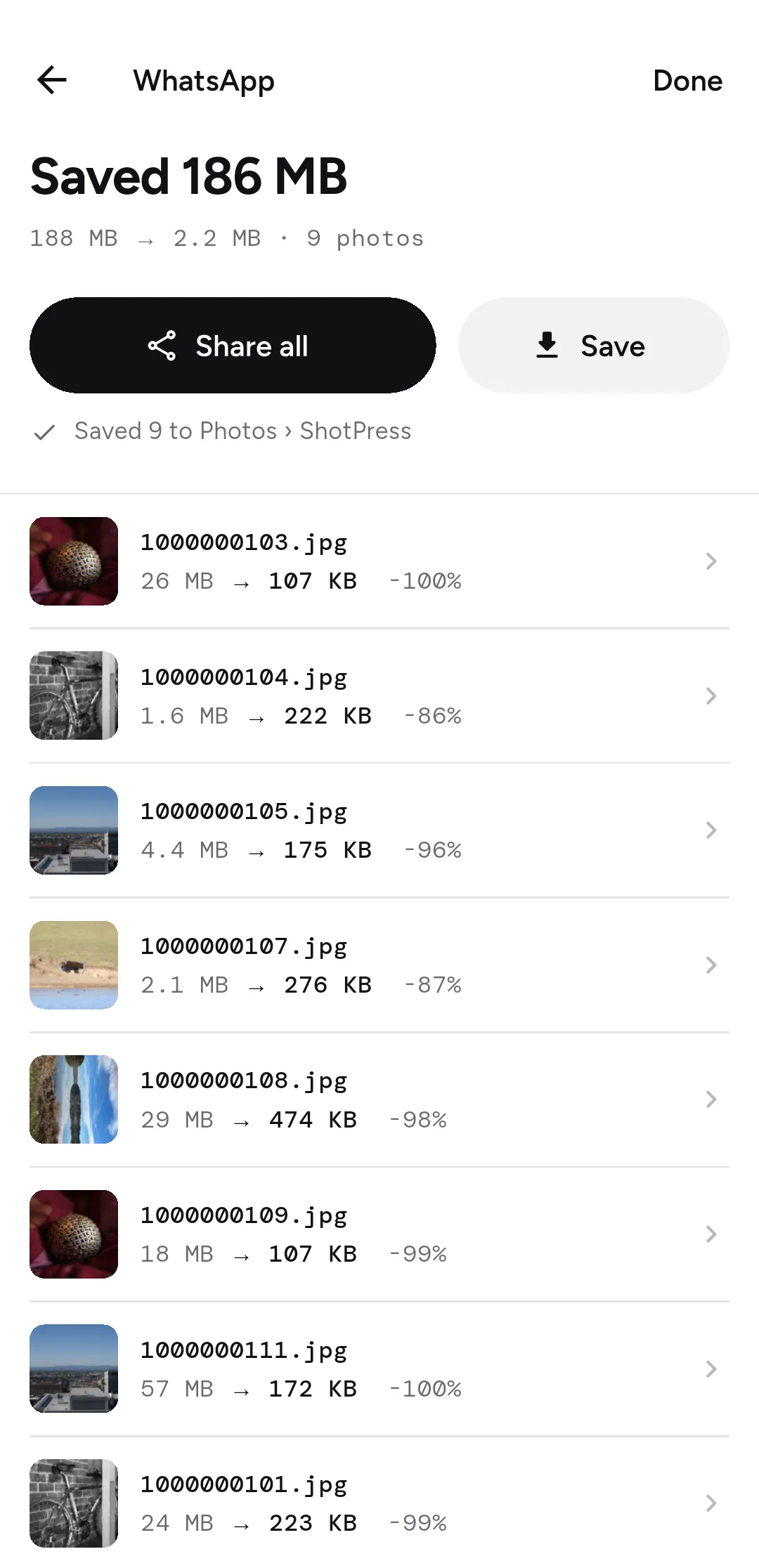
- Tap Free up on the results screen (it is on the home screen too); it shows how much storage you would get back. The next screen lists the originals the smaller copies can replace.
- Keep the originals you want to replace selected and tap Move … to trash. Android shows its own confirmation; nothing moves until you allow it.
Does deleting photos free up storage on Android?
Yes, but not straight away. On Android 11 and later, a photo you delete goes to the trash first, and it keeps using storage there until the trash empties, usually after 30 days. ShotPress moves originals to that same trash, so the space comes back when the trash empties, or sooner if you empty it yourself.
Is it safe to replace originals with smaller copies?
It is a choice you make photo by photo, and it can be undone for a while. ShotPress never moves anything on its own: you pick which originals go, and Android asks you to confirm. Until the trash empties, you can restore any of them from your gallery's trash. Once it empties, the full-size original is gone and only the smaller copy is left, so replace only what you are happy to keep at the smaller size.
What happens to RAW files?
They stay unless you say otherwise. RAW originals are left out until you turn on Also replace RAW originals for that batch, because RAW detail can't be recovered once the trash empties. For a RAW and JPEG pair from the same shot, the camera JPEG can go while the RAW stays.
Which photos can't be replaced?
Free up space shows the ones it leaves out, with the reason. They are photos brought in from Files, a folder, a ZIP or the system picker (ShotPress can't reach their original in the library); originals already deleted elsewhere; copies that came out no smaller than the original; and copies no longer on the phone. RAW files that Android's photo library doesn't list as photos, often Canon CR3, can't be replaced either.
What it doesn't do
Free up space needs Android 11 or later, which has the system trash; on Android 8 to 10 it is hidden. It doesn't empty the trash for you. The free tier compresses up to 5 photos a day, so larger clear-outs need Pro. An iOS version, where originals go to Recently Deleted, is on the way.
Try it
ShotPress is in closed testing on Android now, with the public release on Google Play coming soon and iOS later. Ask to join the early-access test and we'll add your Google Play account to the testers list, or see all the features.